Table of Content
The HTML<kbd> tag shows the keys that a user must press. This helps you to give instructions for commands or shortcuts. It is common in guides where you explain steps for tools or games.
Understand the <kbd> Tag in HTML
The <kbd> tag marks text as keyboard input in HTML. It is inline and appears inside normal text. Browsers usually display it in monospace style.
Here is the basic tag:
<kbd>Key</kbd>It wraps the name of the key inside the tag. Here is a quick example:
<p>Press <kbd>Ctrl</kbd> + <kbd>C</kbd> to copy.</p>The keys are shown inside the kbd element to highlight them as input.
Here are the browsers that support the <kbd> tag:
- Chrome
- Firefox
- Safari
- Edge,
- Opera
The <kbd> works in most mobile browsers.
How to Style the <kbd> Tag in HTML with CSS
You can use CSS to change how keys look on the screen. Borders and padding can make them look like real keys in CSS.
Here is an example:
<style>
kbd {
  border: 1px solid #000;
  padding: 3px 5px;
  border-radius: 3px;
  background: #eee;
}
</style>
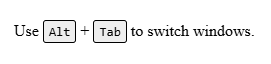
<p>Use <kbd>Alt</kbd> + <kbd>Tab</kbd> to switch windows.</p>
This adds custom styles to the <kbd> element. Here is an image that shows you that:
Nest the HTML<kbd> Tag Inside Other Tags
You can place the <kbd> inside many elements:
- Paragraphs
- Headings
- Tables
- Lists
Here is an example:
<p>Click <strong>Options</strong> and press <kbd>F10 to open the menu</kbd>.</p>The Differences Between kbd Tag and Samp Tags
The<kbd> element shows what the user must type, while the<samp> element displays text that a program outputs.
Here is a table that shows you the key differences between them:
| Feature | kbd | samp |
|---|---|---|
| Purpose | User input keys | Program output |
| Default font | Monospace | Monospace |
| Typical use | Shortcuts and commands | Messages and responses |
The use case:
- kbd shows shortcuts or typed commands.
- samp shows results from a program.
Examples
Copy Shortcut:
<p>Press <kbd>Ctrl</kbd> + <kbd>C</kbd> to copy selected text.</p>This example shows a key combination that copies text in most systems.
List of Shortcuts:
<ul>
  <li>New Tab: <kbd>Ctrl</kbd> + <kbd>T</kbd></li>
  <li>Close Tab: <kbd>Ctrl</kbd> + <kbd>W</kbd></li>
</ul>
The multiple shortcuts are listed, each with its own kbd tags.
Wrapping Up
You learned how the kbd tag works and how to style it in this article. You also saw how to use it inside other tags and how it differs from samp.
Here is a quick recap:
- The <kbd> tag marks text as user key input; you can style it with CSS.
- It works in all browsers.
FAQs
What is the purpose of the <kbd> tag in HTML?
<p>Press <kbd>Ctrl</kbd> + <kbd>S</kbd> to save.</p>How to style the <kbd> tag in HTML?
<style>
kbd {
  background-color: #eee;
  border: 1px solid #ccc;
  padding: 2px 4px;
  border-radius: 3px;
}
</style>
<p>Press <kbd>Enter</kbd> to continue.</p>
What is the difference between <kbd> and <code> tags?
<p>Use <kbd>Ctrl</kbd> + <kbd>C</kbd> to copy.</p>
<p>Example of code: <code>print("Hello")</code></p>
Can you nest <kbd> tags inside other elements?
<p>To refresh the page press <kbd>F5</kbd>.</p>Similar Reads
HTML syntax shows how tags and attributes go together. It gives browsers the rules to read and display a page.…
You use the <aside> tag to mark extra content in HTML. It does not replace the main text and shows…
HTML builds the base for every web page. It sets structure and meaning so the browser knows what to show.…
The HTML title attribute adds extra info to any element. You can use it to show tooltips on hover. What…
HTML tags that no longer work stay in the deprecated list. This article explains them and shows the modern replacements.…
The <svg> tag in HTML helps you draw graphics that scale cleanly at any size. You can animate shapes and…
The nav tag defines a navigation block in HTML. It holds main links to other parts of your site. Search…
The HTML section tag groups parts of a web page that share one theme. It gives clear meaning to content.…
The HTML form tag helps you collect user input on a website. You use the HTML form tag to create…
The data tag connects visible content with a machine-readable value in HTML. This helps browsers and tools understand and process…