

Table of Content
If you are ready to take your first steps into the realm of web development, then there cannot be a better way other than writing a ‘JavaScript Hello World’ program as shown below.
This article will walk you through the process of building the classic “Hello World!” in JavaScript program.
So, let’s see different ways to write a —”Hello World” program in Javascript:-
- Display the ‘Hello World’ program through the browser console
- Show the “hello world” inside the alert popup box.
- Display the “hello world” within the HTML DOM element.
Before we get started let’s set up our workspace for JavaScript.
Setting Up Your Environment
You only need a text editor and a web browser to begin. Open your preferred text editor—whether it’s Visual Studio Code, Sublime Text, or another—and create a new file. Give it a name like helloWorld.html to indicate it’s an HTML file.
Start writing your code according to the structure you need, whether it is embedded in JavaScript or an external file.
In this example, we will use embedded JavaScript code within HTML.
<!-- helloWorld.html -->
<!DOCTYPE html>
<html>
  <head>

      <title>Hello World Program</title>

  </head>
  <body>

      <h1>Welcome to JavaScript Hello World program</h1>

      <!-- The embedded JavaScript code would be here -->
      <script type="text/javascript">
        // => Your JavaScript Here
      </script>

  </body>
</html>
According to the above HTML structure, we will write our JavaScript code inside the <script> tag.
Running JavaScript in the Browser: Print “Hello World” in Browser Console
In this program, we will use the console.log function to print the text in the browser console.
Here is the code of JS.
<!-- helloWorld.html -->
<!DOCTYPE html>
<html>
  <head>

      <title>Hello World Program</title>

  </head>
  <body>

      <h1>Welcome to JavaScript Hello World program</h1>

      <!-- The embedded JavaScript code would be here -->
      <script type="text/javascript">
        console.log('Hello, World!');
      </script>

  </body>
</html>
Now, let’s open the browser console by doing the following steps:-
- Right-click on the web page.
- Select the “inspect” object from the menu.
- Navigate to the “Console” tab.
- The output of this program should be printed in the browser console like in the below image.
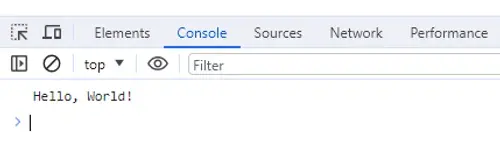
We can also display the same output using JavaScript’s built-in alert function. This is done through a pop-up box that appears on the webpage during actions.
So, let’s see how can we do that in the following section.
Displaying the Message Using the Alert Function in JavaScript
Basically, JavaScript provides us with a simple notification or message to the user while exploring the browser—It is aleret().
Here is an example of its syntax.
alert('Hello, World!');Let’s see what happens if we add this line of code to our webpage.
<!-- helloWorld.html -->
<!DOCTYPE html>
<html>
  <head>

      <title>Hello World Program</title>

  </head>
  <body>

      <h1>Welcome to JavaScript Hello World program</h1>

      <!-- The embedded JavaScript code would be here -->
      <script type="text/javascript">
        alert('Hello, World!');
      </script>

  </body>
</html>
So, when the webpage is loaded the JavaScript will trigger a pop-up on the browser containing a message of — “Hello, World” as a dialog box.
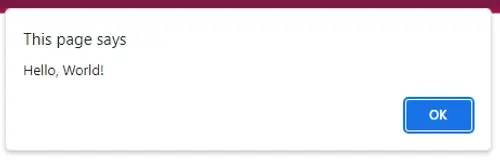
Additionally, there is another way to show — the “Hello, World” text on the webpage using the document.write. Let’s move on to the following part to understand how can we do that.
Using document.write to Print — the “Hello World” in JavaScript
Actually, document.write is a built-in method in JavaScript that allows us to write content directly to the webpage.
This function is executed when the browser starts parsing the HTML. Here is an example.
<script type="text/javascript">
    document.write('Hello, World!');
</script>
Similar Reads
The development of full-featured and interesting pages cannot be done without JavaScript which makes it possible to animate plain HTML…
The for...of loop appeared to solve the problem of complex loops over arrays and strings. It gives you a way…
String Operators in JavaScript help you work with text. You can join, build, or change strings. Most of what you…
JavaScript syntax is what you will use when writing and reading javascript code, it is the foundation of using this…
Math.asin() finds the arc sine of a number in JavaScript. It helps you work with angles from values. You get…
JavaScript toReversed returns a new array with the reversed order of its elements. It does not change the original array…
Math.sin() in JavaScript gives the sine of a number. This number must be in radians. You use it to work…
Unary operators in JavaScript work with only one value. They can change, test, or change the type of that value,…
Comments in JavaScript help you explain code and prevent mixing. They guide anyone who reads or edits your script. Understand…
AJAX keeps your web app fast. You do not need to reload the page every time you send or get…

